ENGR 21 Fall 2025
HW 1
Summary
Due Date: Tue, Sep 9 at midnight
What to submit: a PDF file for (1), conway_v1.py for (2), and slideswitch.py and lightsensor.py for (3).
Submit at: This link for the PDF and this link for the code. You can see the submission pages on the course Moodle page as well.
(1) Variables and Types
For this problem, please use the Circuit Python REPL inside the Mu Editor. For this, you need to:
- Open the Mu Editor while your Circuit Playground Bluefruit is connected via USB-C.
- You should see the text “Circuit Python” at the bottom right together with a micro-chip symbol without a red X. If so, you have successfully completed the installation instructions from lecture 1. If not, please follow those instructions.
- Click the ‘Serial’ button on the toolbar. This should open a new area of the Mu Editor screen.
- The REPL should say “Press any key to enter the REPL. Use CTRL-D to reload.” Follow this instruction and press any key. The lights on the circuit board will turn white and you are now in the “REPL” mode.
- This is the interactive version of Circuit Python.
Methods associated with built-in class str
In class, you were shown how to create string objects.
Objects of type str are “strings” such as hello or hello2 or hello2! and so on. To make a string and assign it to a variable, say, a1, execute the following line on the REPL. The >>> is only shown to indicate that you are doing this in REPL mode.
>>> a = "hello!"
By using the dir() function on an object of type str, obtain a list of possible methods associated with class str in CircuitPython. Look up these methods in the official Python documentation to find out what they do.
Tasks
Complete the following tasks. You will turn in text (hand-written or typed), not code.
- What does the method
findgive you if you use it to find a character that doesn’t exist in the searched string? - How does
finddeal with repeated characters in a string? - Look up the documentation for the method
countassociated with the classstr, i.e., the functionstr.count. Use this to write out the syntax for one line of code that counts the number of times the letter ‘l’ appears in the word ‘hallelujah’. - In CircuitPython’s REPL, use
dir(a)whereais a string that you created. (It can be any string). This will give you all the methods that are associated with objects of type ‘string’ in CircuitPython. Choose 5 of these functions and look them up in the official Python documentation. Write a short, one-to-two sentence explanation of what each function/method does. Also, write out a line of valid CircuitPython syntax for using the functions you have chosen. - Browse the list of methods associated with Python’s
strclass, also at the official documentation website. These methods are namedstr.<methodname>(...). Find 2 methods that you see in this list that are not available in CircuitPython, i.e., methods that you do not see when you rundir()on a string that you created on your Circuit Playground. Write a short, one-to-two sentence explanation of what these methods/functions do.
Methods associated with built-in class list.
In clas, you were shown how to create list objects.
To make a list, you can execute the following line on the REPL:
>>> a = [1,2,3,'hello']
By using the dir() function on an object of type list, obtain a list of possible methods associated with class list in CircuitPython. Look up these methods in the official Python documentation. Note that many methods are common to list, tuple and range, so you will have to read the documentation carefully to make sure you are interpreting it correctly.
Tasks
- In CircuitPython’s REPL, use
dir(a)whereais a list that you created. (It is recommended that you make a diverse list with several elements using the syntax shown in class.) This will give you all the methods that are associated with objects of type ‘list’ in CircuitPython. For all of these functions, look them up in the official Python documentation. Write a short, one-to-two sentence explanation of what each function/method does. Also, write out a line of valid CircuitPython syntax for using the functions you have chosen.
(2) Conway’s Game of Life
Conway’s game of life works on the principle that every ‘cell’ in a 2-dimensional grid is either ‘alive’ or ‘dead’ at any given time. Time moves forward in discrete increments, and the state of the system at time step $n$ is determined completely by the state of the system at time step $n-1$, according to the following rules.
- If a cell is currently dead, then it becomes alive in the subsequent time step if it has exactly three live neighbors.
- If a cell is currently alive, then it stays alive in the next time step only if it has either 2 or 3 live neighbors. Otherwise, it dies.
The code given below is a ‘skeleton code’ for you to begin developing your own implementation of Conwway’s game of life. Copy and paste the code below into your CircuitPython’s code.py file and click ‘save’ to run it. You should make sure you have clicked the ‘serial’ button so that you are able to read the output.
# Conway's game of life
# 'True' = 'Alive'
# 'False' = 'Dead'

# Current state of the system. You should modify this to see
# how your code behaves if the state of the system is changed.
# Right now, all the surrounding cells are 'dead' and the
# cell at the center is 'alive'.

this        = True

north       = False
northwest   = False
west        = False
southwest   = True
south       = False
southeast   = False
east        = True
northeast   = False

# Print to inform the user about the current state.
# Don't change this line.
print("The cell is currently",this)

#--- Implement logic here ---#
if this == True:
    # implement logic for alive cells
    this = False
elif this == False:
    # implement logic for dead cells
    this = True

#--- End implementing logic ---#

# Print to inform the user about the new state:
# Don't change this line.
print("After applying the rules, the cell is now",this)
Task
Modify the part that says ‘Implement logic here’ so that it applies the rules of Conway’s Game of Life to the central cell, named this. The current code is not correct, because it simply switches the cell to ‘Dead’ if currently ‘Alive’, and to ‘Alive’ if currently ‘Dead’. In reality, the cell should become alive or remain dead based on the two rules given above.
You will probably have to create another variable, or variables, in the process of working out what should happen to the cell if it’s alive and what should happen to the cell if it’s dead. Think of this as a ‘counter’ variable.
The part of the code where the cell and its neighbors are set to True or False is meant for you to try out different configurations of the nine cells (one central cell called this and its eight neighbors. For example, the values currently given in the code correspond to the following state of Conway’s game in a 9-cell grid. The east neighbor and southwest neighbor is alive, the central cell (the one you have to change) is currently alive, and the other cells are dead.
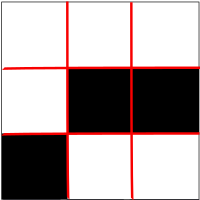
Note that this script implements a single step in the game, and does so for a single cell. The neighbors’ states are not changed by the program, only the central cell’s states are changed.
You should test out your code by modifying the current state to a different state (i.e., changing which cells are alive and dead currently) and making sure that your script updates the central cell correctly according to the rules of Conway’s game of life.
Turn in the code that you’ve written inside a file named conway_v1.py.
(3) Programming the Circuit Playground Bluefruit using if statements
The Circuit Playground Bluefruit has a built-in light sensor and a slide switch. It also has multiple LEDs, called ‘neopixels’, that can be set to any color and brightness. You can read about how to use these functionalities of your board on this page. In this problem, you are asked to use if statements to program the Circuit Playground Bluefruit. Note that all code run by the Circuit Playground Bluefruit should be enclosed in a while loop and should be preceded by the line of code shown in the example below.
from adafruit_circuitplayground import cp

while True:
   # implement your code here.
Slide switch
Write a program that, when loaded on to code.py on your Circuit Playground Bluefruit, sets one of the neopixels to red if the slide switch is set to ‘off’ (all other LEDs should be switched off), and sets a different pixel to green if the slide switch is set to ‘on’ (all other LEDs should be switched off). You can pick any of the pixels, but two different pixels should be used.
Turn in your code as slideswitch.py. When we copy its contents on to our own board’s code.py, it should work as expected.
Light sensor
Program the Circuit Playground Bluefruit to play a tone of 440 Hz if the light sensor is covered by one’s hand, or if it placed in a very dark room. It should stop playing the tone once exposd to the usual light of a Singer Hall classroom.
Turn in your code as lightsensor.py. When we copy its contents on to our own board’s code.py, it should work as expected.