Lecture 05
E21 Computer Engineering Fundamentals
Loops and Delays
Write a program and save to code.py. Your program should:
- Light up a blue pixel for as long as button A is pressed.
- Light up a yellow pixel for as long as button B is pressed.
- If a button is not being pressed, the corresponding light should be off
- Print a statement about which button is currently pressed every
xseconds, wherexis a small number less than one.
Solution
from adafruit_circuitplayground.express import cpx
import time

x = 0.2

while True:
    time.sleep(x)
    # This part checks for button A
    if cpx.button_a:
        cpx.pixels[4] = (0,0,50)
        print("Button A pressed")
    else:
        cpx.pixels[4] = (0,0,0)

    # This part checks for button B
    if cpx.button_b:
        cpx.pixels[8] = (50,50,0)
        print("Button B pressed")
    else:
        cpx.pixels[8] = (0,0,0)
More about delays inside loops
So far, we have used the same delay for the print statement and for the logic that checks the buttons
It is possible to use a different delay for both parts of the code
Run the following code, which will be part of HW 3.
from adafruit_circuitplayground.express import cpx
import time

print_freq = 3 # printing should occur once every <-- secs
loop_interval = 0.1 # while loop should run once every <-- secs

start_time = time.monotonic()
while True:
    time.sleep(loop_interval)
    now_time = time.monotonic()-start_time
    # This part checks for button A
    if cpx.button_a:
        cpx.pixels[4] = (0,0,50)
    else:
        cpx.pixels[4] = (0,0,0)

    # This part checks for button B
    if cpx.button_b:
        cpx.pixels[8] = (50,50,0)
    else:
        cpx.pixels[8] = (0,0,0)

    if abs((now_time % print_freq) - print_freq) < loop_interval:
        # now, print or not.
        if cpx.button_a:
            print("Button A is pressed")
        if cpx.button_b:
            print("Button B is pressed")
        if not cpx.button_a and not cpx.button_b:
            print("No button pressed")
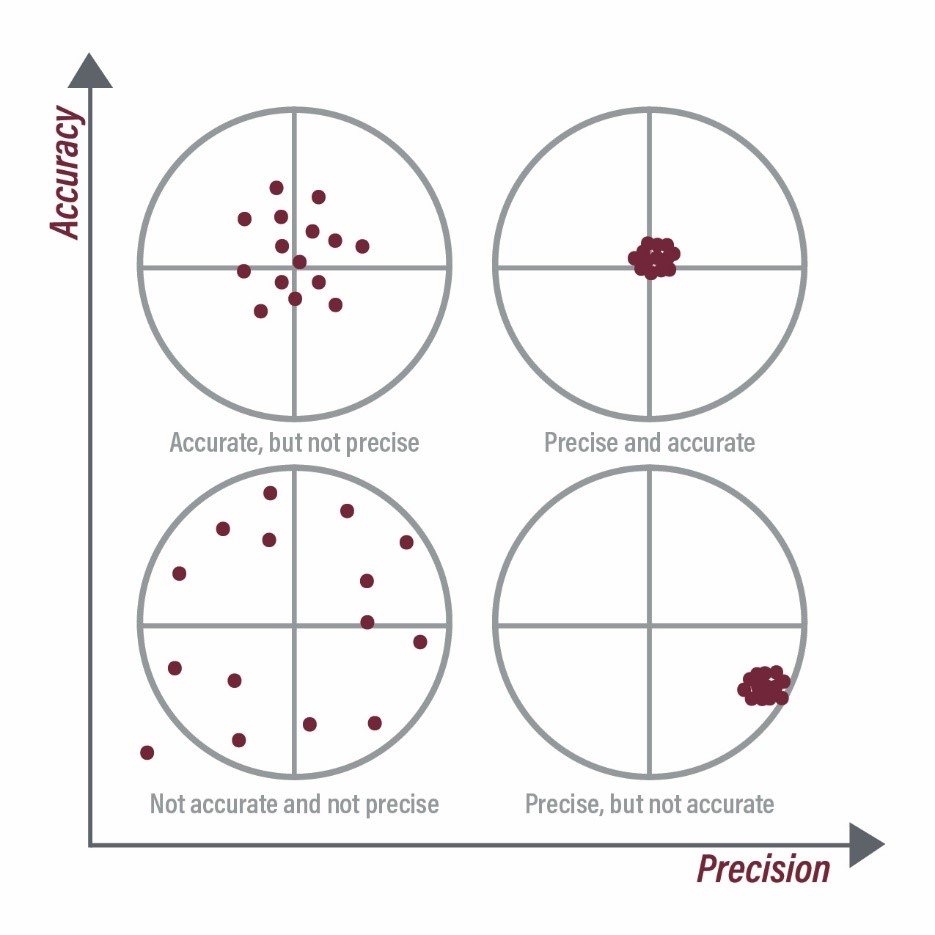
Precision and Accuracy of measurements
- Accuracy refers to how close a measurement is to the true value
- A measurement can be precise without necessarily being accurate.
Quantifying error
When the true value is known:
- \(\text{Absolute error} = \left|{\text{Measured value }- \text{True Value}} \right|\)
- \(\text{Relative error} = \left| \frac{\text{Measured Value }- \text{True Value}}{\text{True value}} \right|\)
These quantify the accuracy, not the precision
When the true value is not known a priori:
- Accuracy cannot be known, but precision can be
- Quantify the ‘spread’ of the data to determine how precise measurements are
- Standard deviation
- Range (max minus min)
- Percent spread \(\frac{\text{max value }-\text{ min value} }{\text{mean value}} \times 100 \%\)
Functions in Python
In Python, a function is a piece of code that is packaged into a single command, and can be ‘called’ — i.e., the code inside the function can be run using the name of the function.
The inputs to a function are called its arguments
The output of a function is said to be returned by the function.
A function with just one input:
def square(a):
  b = a*a
  return b
A function with no inputs:
def approx_pi():
  return 3.14
A function with two inputs:
def power(a,b):
  return a**b # Python notation for 'power'
Where to place functions
In the same file
In Python, functions can be placed in the same .py file as the rest of your code.
def add(c,d):
  reutrn c + d

print(add(4,5))
In a different file
Another option is to create a separate file to store all of your functions.
emasroo1@DXFMY22D36 CIRCUITPY % tree
.
├── boot_out.txt
├── code.py
└── myfuncs.py

1 directory, 3 files
Then, you can import functions using from <file name without .py> import <function name>
from myfuncs import add
print(add(4,5))
Functions and interactive mode (REPL)
- Functions must be defined before they can be used
- In interactive mode, you must define your functions after every restart
- This is tedious, so you’re encouraged to put your functions in a file if you need to use functions in interactive mode.
Built-in functions and how to use them
You should look up functions in:
Official Python documentation
Official Circuit Python documentation
The
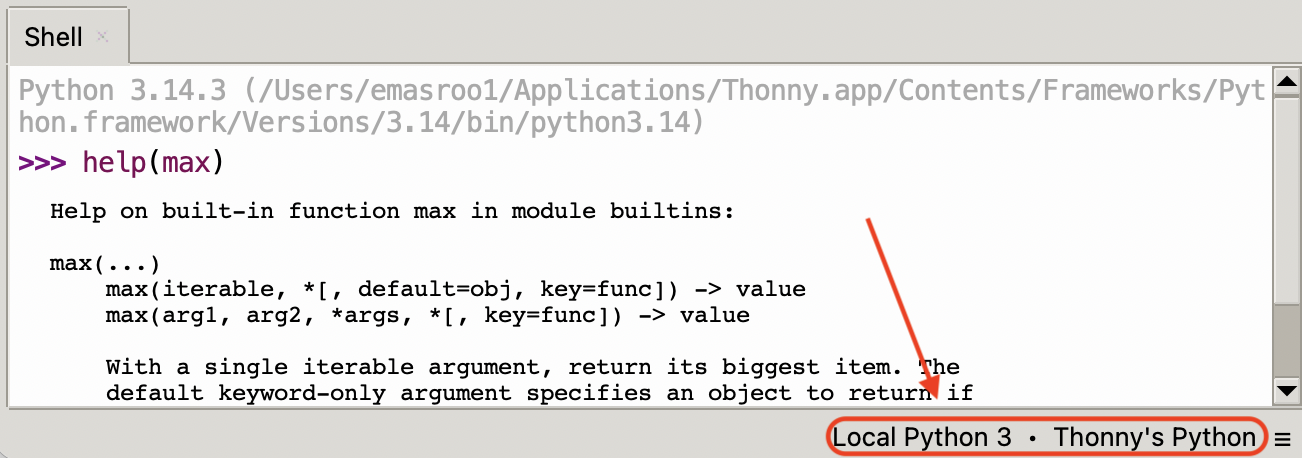
helpcommand>>> help(max) Help on built-in function max in module builtins: max(...) max(iterable, *[, default=obj, key=func]) -> value max(arg1, arg2, *args, *[, key=func]) -> value With a single iterable argument, return its biggest item. The default keyword-only argument specifies an object to return if the provided iterable is empty. With two or more positional arguments, return the largest argument.Note that you may need to switch to ‘Local Python’ because Circuit Python saves space by having smaller documentation files.
Practice writing functions
Write a function that determines the nth Fibonacci sequence number
Recall that the Fibonacci sequence is \[\{ 1, 1, 2, 3, 5, 8, 13, 21, ... \}\] where every number is the sum of the two preceding numbers in the sequence.
Hints:
- The
appendfunction adds on an element to the end of a list - Access the
nth element of a list usingname_of_list[n] - ‘Hardcode’ the first two elements of the sequence.
- The last element of a list is accessed by
name_of_list[-1].
def fib(n):
    listn = [1,1]
    for i in range(2,n):
        new_num = listn[i-1]+listn[i-2]
        listn.append(new_num)
    return listn[-1]
Measuring \(g\) using the Circuit Playground Express
Write a program for the Circuit Playground Express that prints the value of \(g\) to the screen, using (1) the z-component of acceleration \(a_z\), and (2) the magnitude of acceleration \(\sqrt{a_x^2 + a_y^2 + a_z^2}\).
A function that calculates \(\sqrt{a^2 + b^2 + c^2}\)
def magnitude(a,b,c):
    return (a**2 + b**2 + c**2)**(1/2)
Initialize an empty list
readings = []Decide on the frequency of data collection
delay = 0.1Start collecting data on button press
Use a
whileorforloop to keep collecting data until another button press# Wait for button A to be pressed to start: while not cpx.button_a: pass # Collect data while True: # Code to collect data if cpx.button_b: break
Solution
from adafruit_circuitplayground.express import cpx
import time

def magnitude(a,b,c):
    return (a**2 + b**2 + c**2)**(1/2)


# Create an empty list that will store the readings
readings_z = []
readings = []

# Time delay between measurements
delay = 0.1

while not cpx.button_a:
    pass

# Collect data
while True:
    accel_z = cpx.acceleration.z
    accel   = magnitude(cpx.acceleration.x, cpx.acceleration.y,cpx.acceleration.z)
    print(accel_z,accel)
    readings.append(accel)
    readings_z.append(accel)
    time.sleep(delay)
    if cpx.button_b:
        break
Precision + Accuracy of Accelerometer
Characterize the precision and accuracy of the on-board accelerometer
Look up the correct value of \(g\) at the website of the National Institute of Standards and Technology.
- Use Python to calculate relative error — this tells us the accuracy.
- Also determine the precision of your measurement, using
- difference between the largest and smallest values of \(g\), as a proportion of the mean value
- the following functions might help:
max,min,sum
- Add print statements to report to user.
from adafruit_circuitplayground.express import cpx
import time

def magnitude(a,b,c):
    return (a**2 + b**2 + c**2)**(1/2)


# Create an empty list that will store the readings
readings_z = []
readings = []

# Time delay between measurements
delay = 0.1

while not cpx.button_a:
    pass

# Collect data
while True:
    accel_z = cpx.acceleration.z
    accel   = magnitude(cpx.acceleration.x, cpx.acceleration.y,cpx.acceleration.z)
    print(cpx.acceleration.x,cpx.acceleration.y,accel_z,accel)
    readings.append(accel)
    readings_z.append(accel)
    time.sleep(delay)
    if cpx.button_b:
        break

# Do some calculations on 'readings'
g_true = 9.806
g_mean = sum(readings)/len(readings)

relative_error = abs(g_mean - g_true)/g_true * 100
spread = (max(readings)-min(readings))/g_mean * 100
print(f"The accelerometer measured {g_mean}, which is {relative_error:.2f} percent off from the true value")
print(f"The spread is {spread} percent")